

NeetoEngage collects feature requests from your customers. Customers can vote on the requests they care about, so you can see which features are wanted most. You can also share a public roadmap and a changelog to tell customers what is planned and what has been released.
The NeetoEngage integration creates feature requests in NeetoEngage from your NeetoDesk tickets. When an agent starts a private note on a ticket with fr, NeetoDesk reads the conversation with the customer. It then adds the customer's vote to a matching feature request, or creates a new feature request if there is no match.
NeetoEngage and the fr command are not available to everyone yet. To request early access, email us at support@neetodesk.com with your NeetoDesk workspace URL. Until the command is turned on for your workspace, typing fr in a note does nothing.
Creating an API key in NeetoEngage
In NeetoEngage, go to Admin panel > General > API keys.
Click Add API key.
Enter a name for the key, for example NeetoDesk.
Under Token expiration, select No expiration.
Save the key.
Click the copy icon next to the new key.
Connecting NeetoEngage to NeetoDesk
In NeetoDesk, go to Admin panel > Integrations > NeetoEngage.
Click Connect NeetoEngage.
In Workspace URL, enter the address of your NeetoEngage workspace, for example
https://your-workspace.neetoengage.com.In API key, paste the key you copied from NeetoEngage.
Click Connect.
NeetoDesk checks the workspace URL and the API key with NeetoEngage before saving.
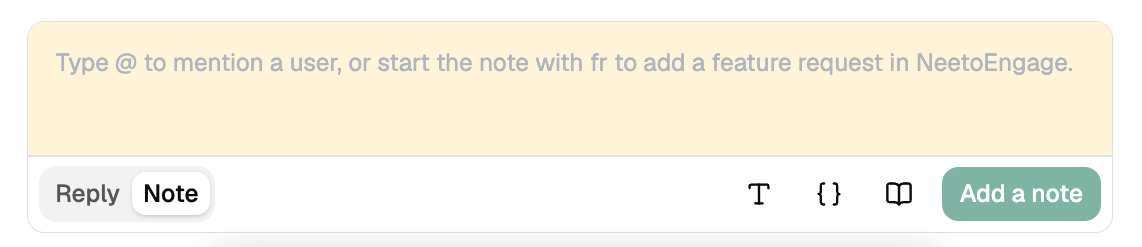
Once the fr command is turned on for your workspace and NeetoEngage is connected, the note box on tickets shows this hint: "Type @ to mention a user, or start the note with fr to add a feature request in NeetoEngage."
Adding a feature request from a ticket
Open the ticket.
Click Note at the bottom of the ticket.
Start the note with
fr. To point it at a specific request, add a few words after it, for examplefr export reports as PDF.Click Add a note.
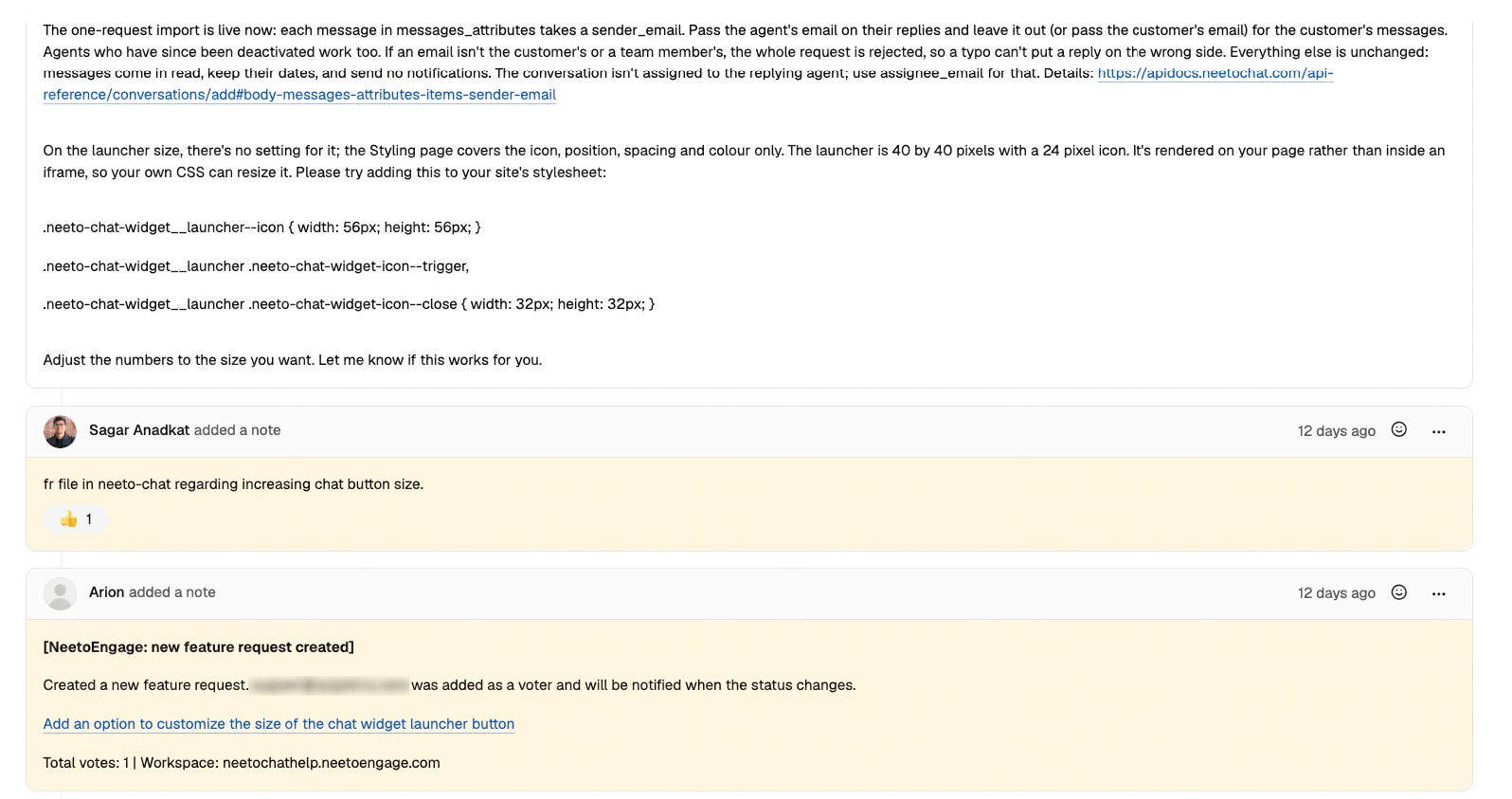
NeetoDesk adds a 👍 reaction to your note and then posts a private note on the ticket with the result. If a feature request was created or voted on, the result note includes a link to it, its status and its total number of votes.
To work out what to file, NeetoDesk reads the messages between your team and the customer on the ticket. It does not read private notes, except for the words you type after fr. Those words take priority over the rest of the conversation, so add them when the customer asked for more than one thing.
If a matching feature request already exists in NeetoEngage, the customer is added as a voter on it. If not, a new feature request is created with the customer as a voter. The customer can be added only when the ticket has their email address. If the conversation does not include a clear feature request, nothing is filed and the result note says so.
NeetoDesk keeps the customer's name, email address and other personal details out of the title and description of the feature request, because these can be seen on your public roadmap. The customer's name and email, a short summary of what they asked for and a link to the ticket are added as a private note on the feature request, which only your team can see.
fr works only at the start of a new private note. It does nothing in a reply to the customer, or when you edit a note that was already added.
Daily limit
Each workspace can use fr 5 times in any 24 hours. All agents in the workspace share this limit.