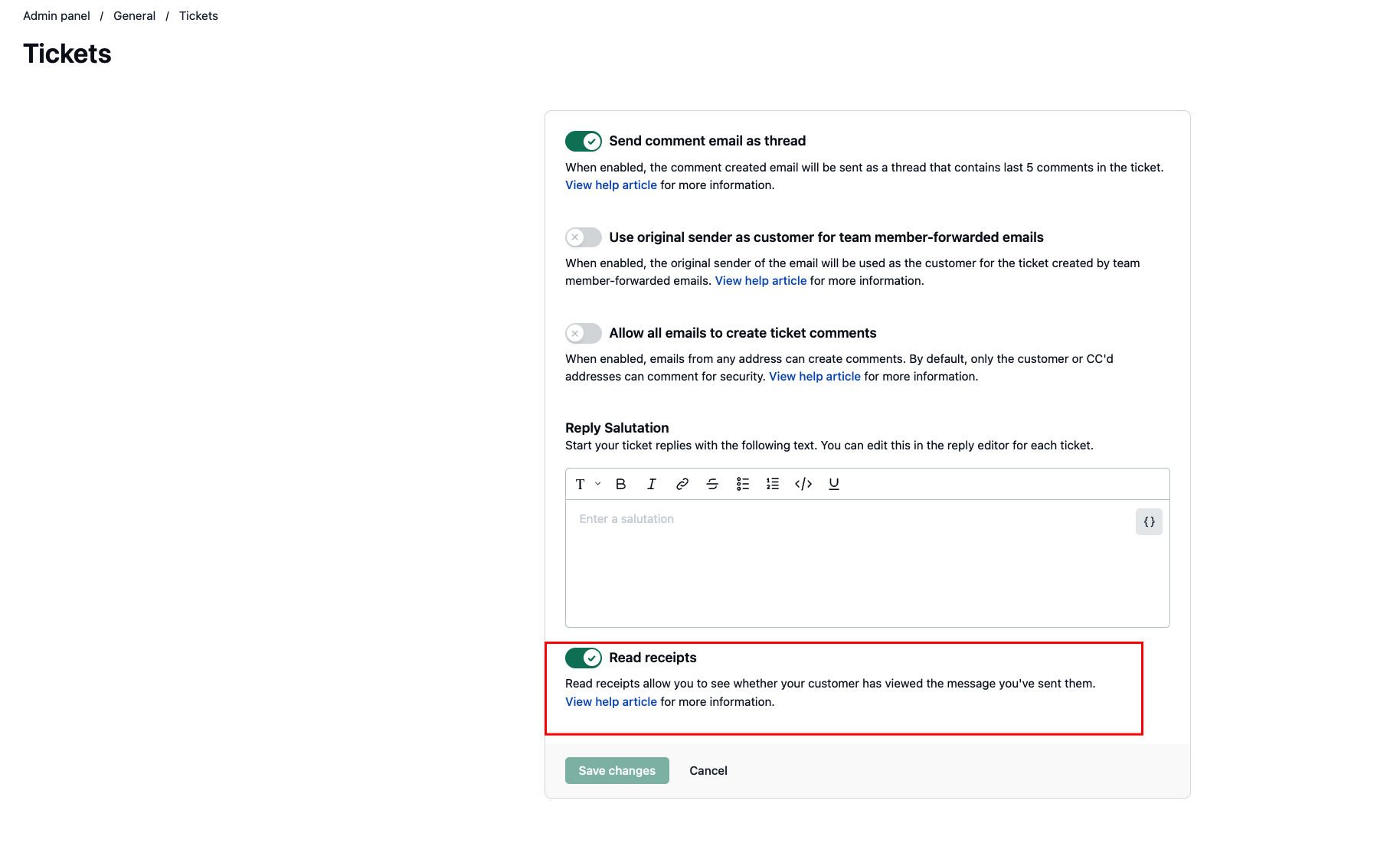

This feature allows you to see if a customer has viewed a message sent to them. This is helpful for you to know when you'd like to take a follow-up further.
NeetoDesk can mark a reply as seen in two ways:
When the customer opens the ticket in the customer portal.
When the customer opens the email notification and their email client loads the tracking pixel.
For email notifications, NeetoDesk adds a tiny tracking pixel to outgoing emails. When the email client loads this pixel, NeetoDesk records the reply as seen. A green double-check icon appears on the sent reply after it is seen. Hovering over the icon shows when the reply was first seen.
Please note that read receipts is a helpful tool, but it's not 100% accurate. There are some exceptions. Some email providers or spam blockers automatically access the tracking pixel to scan the message. This can make a message appear as read even if the customer hasn't opened it.
Similarly, if you CC or BCC anyone on the email, their view of the message can trigger the tracking pixel, making it seem like the original recipient has read it. The system can't distinguish who opened the message in a group conversation.
Some email clients may not load the tracking pixel by default due to security or privacy settings. In these cases, the customer may have read your message, but it will still show as "unread" on your end.
Enabling read receipts
Go to Admin panel.
Click on Tickets card on General category.
Enable Read receipts.
Click on Save changes.